
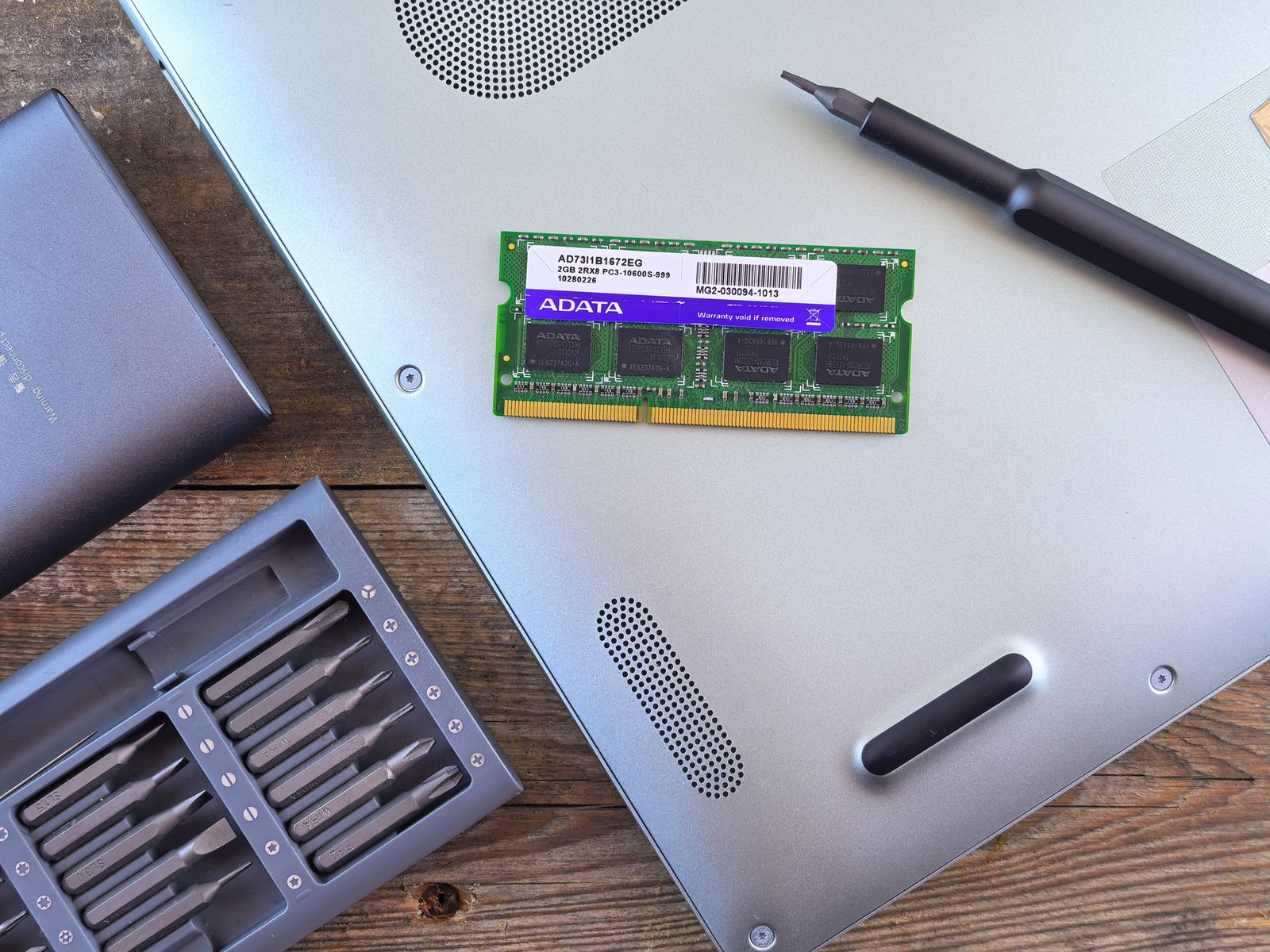
A used laptop can look excellent in a photograph and still be the wrong purchase. A worn battery, missing charger, unfamiliar keyboard layout or unresolved account lock can matter more than a few scratches. The best inspection starts before you pay and continues promptly after delivery.
This checklist is designed for a normal buyer. It focuses on questions and non-invasive checks, rather than opening a computer, running destructive tests or attempting to bypass security controls. It cannot uncover every hidden fault, but it can make the decision better informed.
Before arranging a viewing or placing an order
Ask for the full model identifier and the actual specification: processor, memory, storage, screen and any dedicated graphics. Request photographs of the particular machine, not just a manufacturer’s promotional image. Confirm whether the charger and other essential accessories are included.
Ask about known faults, repairs, battery condition and cosmetic damage. Obtain the return and warranty terms in writing. If the seller uses a grade, ask for the definition that applies to this order.
For a private sale, establish that the person is entitled to sell the device and can remove their own accounts through the proper process. A cheap laptop with unresolved ownership questions is not a bargain you need to rescue.
Bring a short test plan
Make a checklist of the functions you actually need: typing, video calls, headphones, wireless connection, external display and the ports you use. This keeps the inspection focused when you have limited time.
Ask permission before using test files or connecting accessories. Do not access the seller’s documents, browser accounts or saved passwords. A demonstration can use a clean test account or the seller’s own controlled session without exposing personal material.
If you are buying remotely, use the same list when the machine arrives. Photograph the packaging and visible condition, save the listing, and note any difference before starting a long setup process.
Inspect the body with the laptop switched off
Look for cracks, missing screws, damaged ports, uneven gaps and a hinge that feels loose or resists movement abnormally. Examine the charger and cable for visible damage. Do not force a connector or hinge to see whether it will survive.
A raised trackpad, separating case or other sign of possible battery swelling needs professional attention. Do not press it flat, puncture a battery or continue a charging test to investigate. A purchase inspection is not a repair experiment.
Decide which cosmetic marks you can accept. A small lid scratch and damage around a structural hinge are not the same concern. Ask the seller to explain anything that looks inconsistent with the stated condition.
Check the screen in ordinary use
Look at a plain light background and a darker image, then open a document with text you can read comfortably. Check for obvious lines, persistent bright or dark spots, flickering and marks that interfere with your work.
Adjust brightness through a normal range. View the screen from the angles you use at a desk, and check reflections in the available lighting. A panel that is technically functional may still be uncomfortable for your routine.
Confirm the screen specification against the listing. Resolution, touch support and display size should not be inferred from an attractive wallpaper. If a particular feature is essential, verify it directly or through the exact model documentation.
Try the keyboard, trackpad and physical controls
Open a blank document and type a few sentences, including numbers and punctuation. Test the keys you depend on, the backlight if promised, and any physical switches. Check that the keyboard layout matches what you expect.
Use the trackpad for pointing, clicking, dragging and the gestures available on the system. A short inspection may not reveal every intermittent problem, but repeated missed clicks or unexpected cursor movement deserve an explanation.
If an external keyboard is your usual setup, still test the built-in one. It may become important when you travel or need to recover the system without your normal accessories.
Listen, speak and connect
Test the speakers at a reasonable volume and use an authorised local recording to check the microphone. Open the camera and inspect the picture in the room’s lighting. Avoid signing into a personal communication account on a machine you have not yet accepted and prepared for your use.
Check the wireless connection and the ports that matter to you with compatible accessories. Make sure the charging connection is stable during ordinary use. If a dock or external screen is essential, check the exact compatibility rather than assuming all similar-looking connectors do the same thing.
Record any feature you could not test. An unknown is not automatically a defect, but it should not quietly become a claimed pass on your checklist.
Read battery information without treating it as a promise
Microsoft documents the Windows command powercfg /batteryreport for generating a battery report. With the owner’s permission, this can provide information about usage and estimated capacity. Read the report generated on the actual computer rather than an unrelated screenshot.
Compare the available design-capacity and full-charge-capacity figures, where reported, and ask how the seller’s battery standard relates to them. Treat the figures as estimates that need context, not a guaranteed number of hours away from a socket.
A brief demonstration cannot reproduce every workload, brightness setting or battery condition. If mobile use is important, include an ordinary unplugged work session during the return period. Ask about the cost and availability of a model-appropriate replacement before counting a low purchase price as a saving.
Verify specification and storage through the system
Use the operating system’s normal information screens to compare the reported hardware with the listing. Check the model, processor, memory and available storage. Ask about discrepancies rather than accepting a vague explanation that the machine is “equivalent”.
Available storage will not normally match a drive’s advertised capacity exactly because formatting, the operating system and installed material use space. What matters is whether the installed drive and practical capacity match the purchase description and your requirements.
Do not run an erase, reset or storage test that can destroy data during a seller’s demonstration. Any necessary preparation should be handled by the owner through the appropriate process and agreed purchase terms.
Ownership and management must be resolved properly
Ask whether the laptop was previously managed by an employer, school or another organisation. A machine should be properly released by its legitimate owner before you rely on it as your personal device. A fresh-looking desktop does not answer every account or management question.
If setup demands an unfamiliar organisation’s account, an old owner’s credentials or a security password the seller cannot resolve, stop and seek a legitimate resolution. Do not accept instructions to bypass a lock or contact a stranger who promises an unlock for a fee.
Get a receipt or purchase record identifying the seller and device without posting serial numbers or personal details publicly. Keep it with the warranty and return information.
Check operating-system support separately
An operating system installed on a machine does not establish that the hardware is officially supported or that a particular version still receives updates. Check the exact model and the official compatibility and lifecycle information.
For Windows, Microsoft’s requirements include a compatible processor and security capabilities, not just enough memory and disk space. Our Windows-support buying checklist explains the questions to ask before accepting an older sale laptop.
If a specialist application or peripheral is essential to work, check that too. Compatibility with the operating system alone does not guarantee every part of your workflow will behave as required.
Use the return period deliberately
Once you have accepted the machine and followed the appropriate clean-setup process, try normal work promptly. Run your applications, join a test call, connect your usual accessories and use sleep and wake as you normally would.
Keep a brief record of issues with times and a reproducible description. “The laptop is bad” is harder for support to investigate than a clear explanation of what happened, what was connected and whether the problem repeated.
Contact the seller within the applicable time limit. Do not let an unresolved support conversation run past a return deadline without checking your options. The purpose of a return period is to make a decision, not postpone all inspection until the final day.
Your inspection result: pass, question or stop
Mark each requirement as passed, unresolved or unsuitable. A pass means you checked it. An unresolved item needs more information. An unsuitable result means the device does not meet a requirement or presents a problem you are unwilling to accept.
You can choose a laptop with a disclosed compromise, such as cosmetic wear, if the price and terms justify it. The important distinction is between an informed compromise and an assumption made under pressure.
For the broader purchase decision, read new vs refurbished laptops: compare the total cost. Choosing not to buy is a useful outcome when the evidence does not support the offer.
Sources and scope: Microsoft Support, “Caring for your battery in Windows” and “Windows 11 System Requirements,” reviewed on 1 November 2026. The inspection sequence is original editorial guidance, not a certification or a guarantee that all faults can be found. Photo: Andrey Matveev / Pexels, illustrative repair scene; opening a device is not required by this checklist.